Maker Faire, like any festival, is a combination of passion products, startups, and larger companies generating awareness. As I walked around, I noticed many logos and brands. An obvious one to see is Make Magazine. Another I saw that made sense is Digi-Key’s maker.io. They had a strong showing, along with the Arduino booth. But that one is expected since so many projects, not just electronics, have an Arduino in them. That said, there were five brands that I did not expect to see at Maker Faire (and most had something interesting to show.)
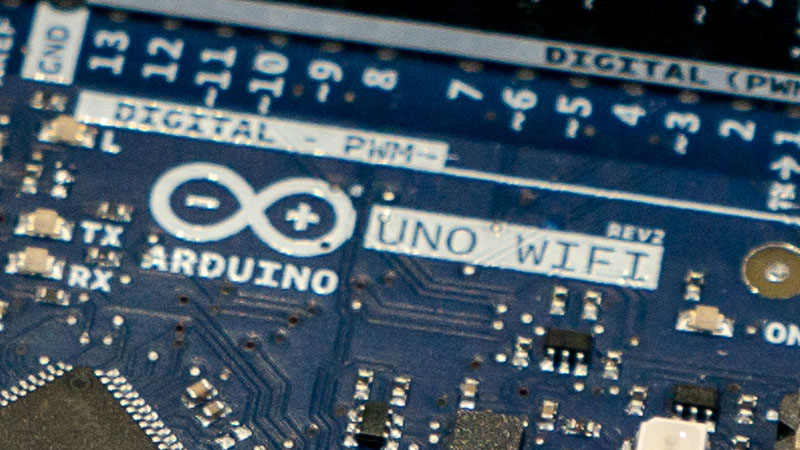
Arduino announced several new products at the 2018 Bay Area Maker Faire. One of those products is the Uno WiFi Rev 2. (Check out this post for an introduction to the MKR Vidor 4000, an FPGA-based board. You can read their official announcement here. This new Uno board represents a significant upgrade for the 8-bit family of Arduino boards. However, I do have a few reservations.
Arduino Uno WiFi Rev 2
Starting off, I am not happy with the name. It is too long. For that reason, I am going to keep using the full name in this post to demonstrate why I don’t like it. Another reason I’m grumpy it that new microprocessor makes it incompatible with 328p code. That said, sketches (and libraries) using only the Arduino library will (likely) work fine. Anything that uses registers, like direct port manipulation, will have issues. Just like moving to any other architecture supported by the IDE. However, because it has the name “Uno,” many users will be tripped up by incompatibilities.
Keeping the name “Uno” was only there for marketing reasons. The form factor is the traditional Arduino Uno style. Which begs the question, can we retire that massive USB connector yet?
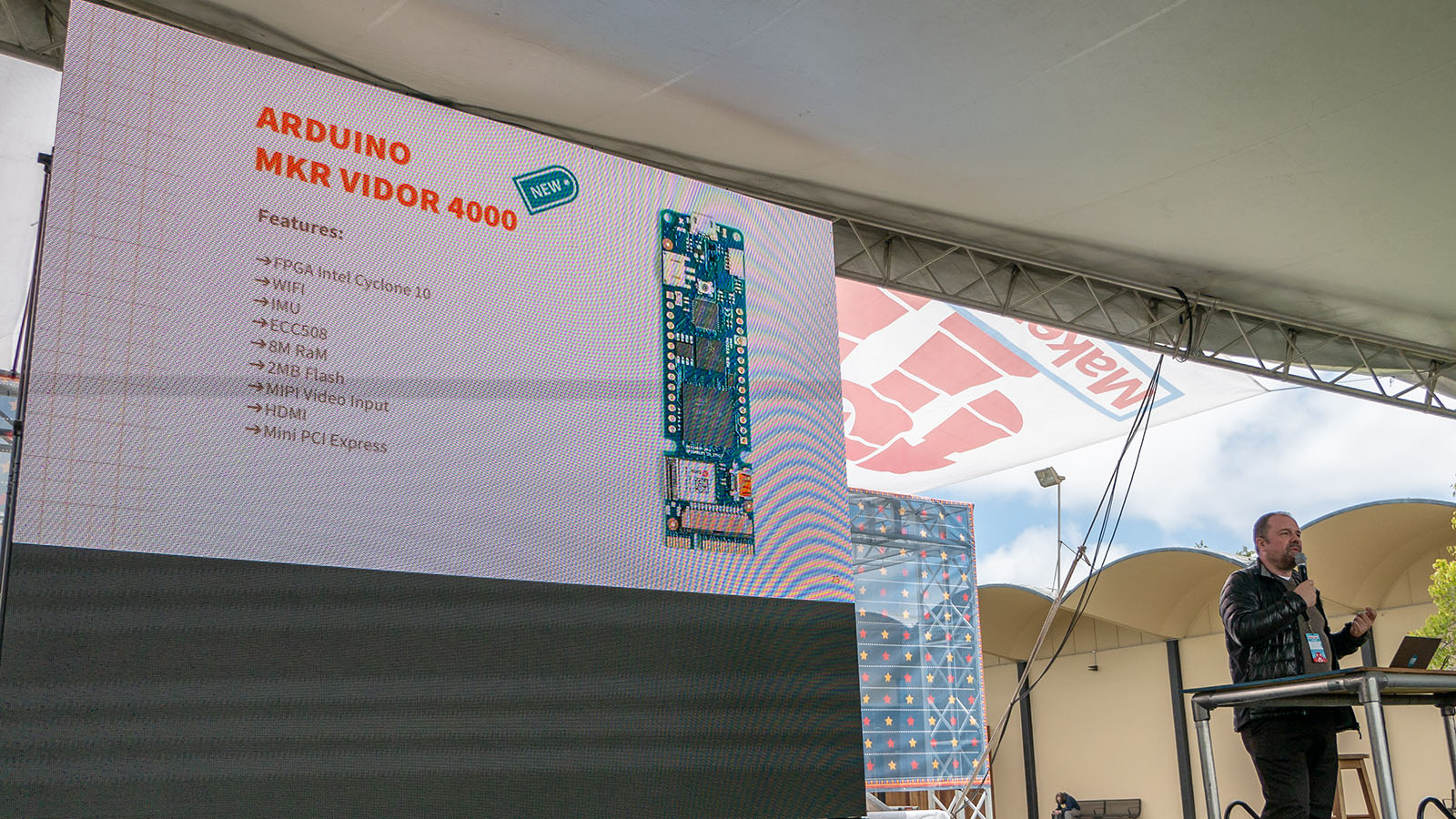
Arduino announced several new products at the 2018 Bay Area Maker Faire. One of those products is the MKR Vidor 4000, an FPGA-based board. You can read their official announcement here. (Over here is a write-up on the new Uno WiFi Rev 2.) The goal of the MKR Vidor is to make FPGA accessible to makers and innovators. It represents a new shift in hardware focus for the Arduino team.
An FPGA is a Field Programmable Gate Array. In other words, it is reconfigurable hardware. Unlike a microcontroller, an FPGA is not running software. Instead, its gate array changes configurations for a specific task.
The example I like to think about is a rotary encoder. You might find one on the spindle of a motor. As the motor spins, an IR sensor detects slits in the encoder to track speed and direction. In a microcontroller based system, you might use an interrupt to monitor the IR sensor. Even though interrupts can respond quickly, there is still a chance of missing a pulse. Plus, the rest of the microcontroller has to wait while the interrupt is handled. In an FPGA, however, you would build a hardware counter with the pulse driving the counter’s clock input. This counting happens independently of whatever else the FPGA is doing.
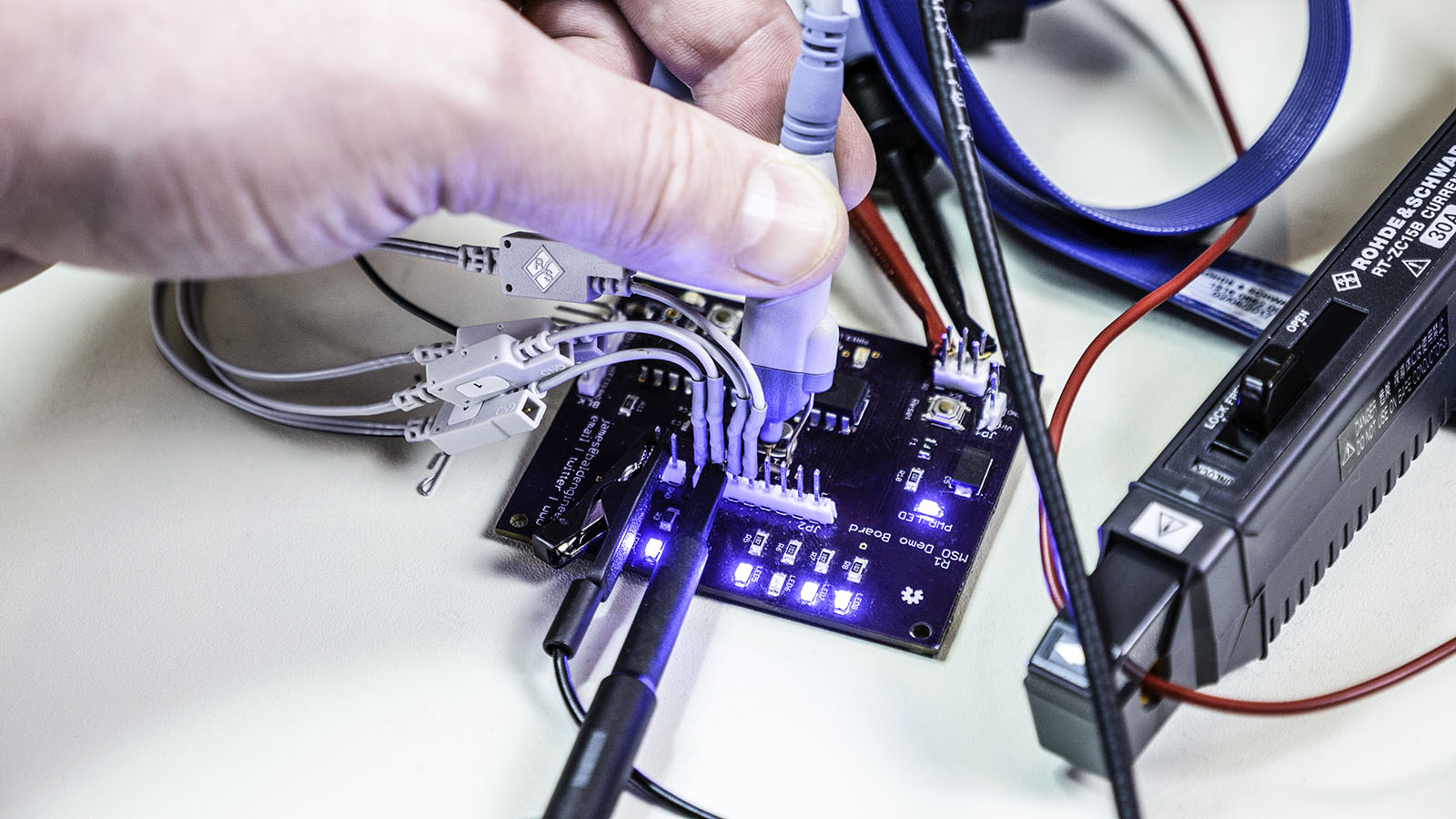
Unless you have a BNC or SMA connector your board, you will need a probe to get signals into an oscilloscope. Understanding what kind of oscilloscope probes are out there, which ones should you have for your scope and which ones to use for different measurements can be daunting. In this post, I look at some common scope probe types and offer some suggested measurements for each.
Special thanks to Rohde and Schwarz for providing the equipment used in this post. You can learn more about their scopes and probes at rohde-schwarz.com .
This post is not a comprehensive guide of oscilloscope probes. I am covering the types I have used. I do think this information should be enough to least form questions to ask your vendor before purchasing. Asking questions is important. If you have never bought specialized oscilloscope probes, you might not realize they can cost more than the scope itself. Maybe not an individual probe, but get one for each channel, and the cost rises. So picking the correct probe type is essential.
Autodesk released EAGLE 9. This new version continues the improvement that Autodesk has been providing since acquiring the infamous ECAD tool. There are three areas I look at in this AddOhms Livestream.
How I looked at EAGLE 9
In the beginning, I use an old training class I wrote about five years ago when I was using EAGLE daily. It shows how to design a 555 flashing circuit from schematic to PCB. A follow-on class taught how to mill the PCB on a Shopbot. I might update the course and release it if I have time. The exercise class helps me find some surprises with EAGLE’s incremental improvements.
After that, I check out three new features. I also looked at the “Design Blocks” stuff which is a way to incorporate completed schematics like the Adafruit PowerBoost circuit. I need to come back and look at that function again later. Also, I am not positive, but I think that feature was introduced before 9.
1. Quick Routing
The quick routing reminds of the old “follow me” option. You can select individual airwires, entire nets, or multiple signals to route interactively. Unlike the Autorouter, which routes the board as the whole. In the video, I build a simple 555-based PCB. I couldn’t try out routing multiple signals, like address and data for DDR memory. The value I see most from this feature is selectively routing your critical signals and then quick routing the remaining non-critical nets.
2. Device Manager
This informational window provides a clean break-down of many pieces of data. Need to know what layers a footprint use? How about the length of an entire net? In the video, I show that you can use this feature to verify all of your passive components have the same package style. The information is all there, Device Manager brings it to your attention.
3. Breakout
Spoiler Alert: I really like the Breakout Feature. (For those that say I don’t smile in videos, I did this time.) Long story short, this is a shortcut to expand all of the pins for an IC. A great example is in the AddOhms Pyramiduino DIY PCB episode. In the beginning, you can see my time lapse as I break out each of the GPIO pins. That can happen in EAGLE now with a single click.
Check it out
Have you had a chance to check out EAGLE 9 yet? If so, what are your thoughts?
Watch EAGLE 9 First Look on YouTube