Category

Blog

Category

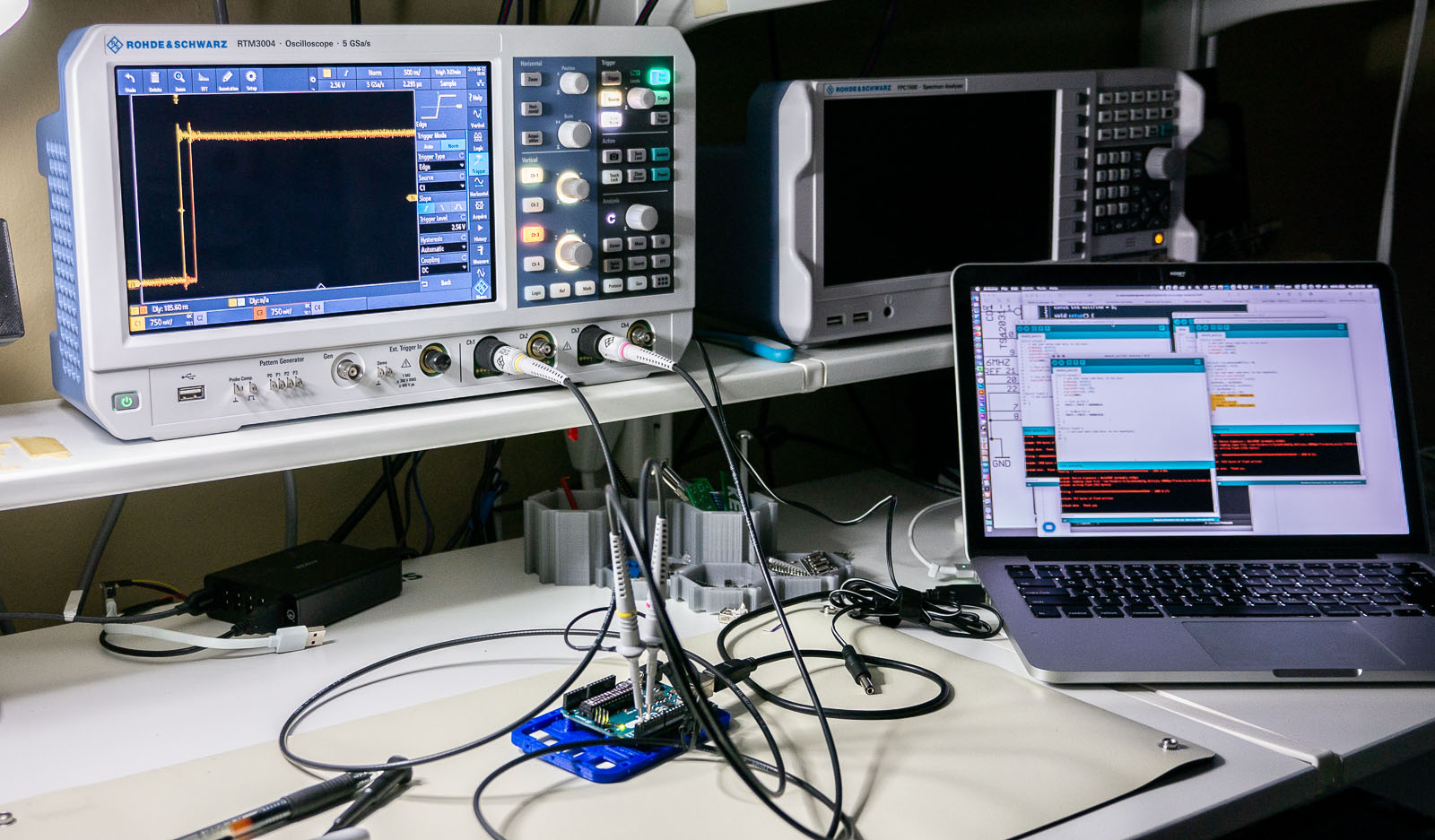
One of the best ways to learn how to use a new piece of test equipment is to use it. Sounds easy, right? The problem is, sometimes when you are in the middle of troubleshooting your circuit, figuring out what the knobs on your scope do is an immense frustration. Use these 6 oscilloscope measurements, and just an Arduino Uno, to learn how to use a new or unfamiliar digital scope.

This tutorial is not a step-by-step guide on how to make each of these measurements on a particular scope. Instead, it is a general explanation on how to setup the Arduino and a screenshot to help identify if you set up your scope correctly. I reference the R&S RTM3004. However, practically any two (or more) digital channel oscilloscope should work.

Between each measurement, I highly recommend using your scope’s default setup (or autoscale) before proceeding to the next one!
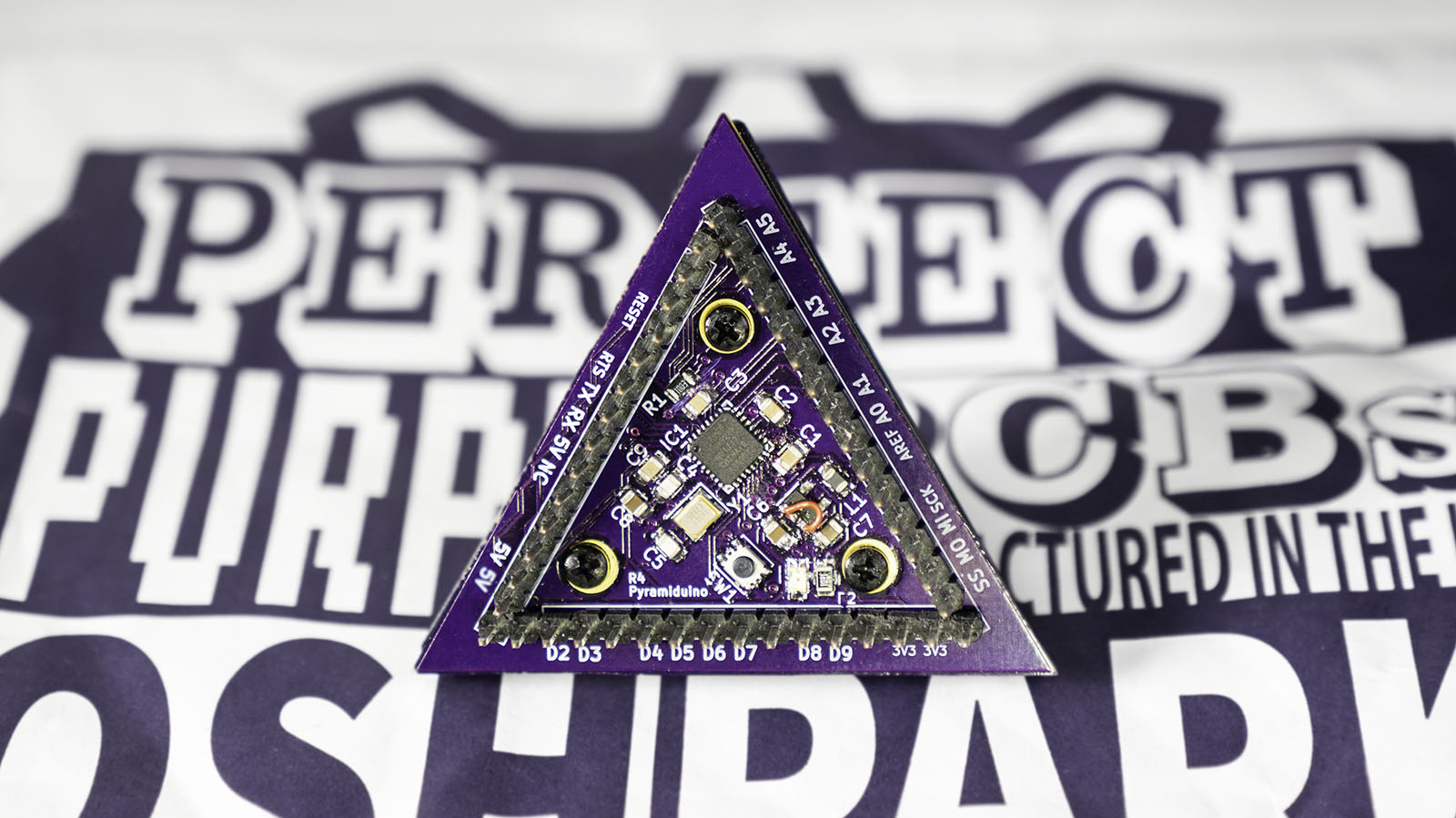

For an AddOhms series, I created a DIY Arduino I am calling the “Pyramiduino.” It is an ATmega328p based board in the shape of a triangle. Other than being cute, the shape does not offer any other benefit. The design features a 3.3 volt LDO Regulator, which is also the subject of this post.

I forgot a fundamental aspect of design: read the freaking datasheet. The board’s LDO regulator was not turning on. Adding a passive scope probe to the circuit suddenly fixed the problem. The regulator turned on. When touching the enable pin, it measured about 1.25 volts.  While I am sure Rohde & Schwarz would like me to ship scope probe with each board, that was not an option. With the impractical fix in place, I got to thinking about that voltage level. I remembered that the datasheet mentioned about 1.2 volts was needed for the “HIGH” threshold. Which meant, 1.25 volts applied to the pin enabled an active low input. Not only that, I remember the datasheet clearly said it had a pull-down resistor built-in. What was going on?

Pretty often I am asked about how I create the AddOhms animations. Currently, I’m working on the final part of the DIY Arduino Series. In the first part, I showed the elements of an Arduino schematic. The second part showed an overview of the PCB design. Finally, I will take the finished board and explain how to turn it on the for the first time. Lucky for me, there was a “mistake” on the board. This error gives some context for the episode.

I needed to explain how the Arduino Uno’s (and Mega’s) “auto-reset” circuit works. I did a live stream showing how I created the animation sequence for this explanation. Well, I started to explain. After almost three hours of streaming, I was only about half-way through the one-minute explanation.

Watch on YouTube

While long, I think the stream helps to illustrate the kind of work I put into my videos. Speaking of which, I need to get back to finishing this one.

Watch Video On YouTube

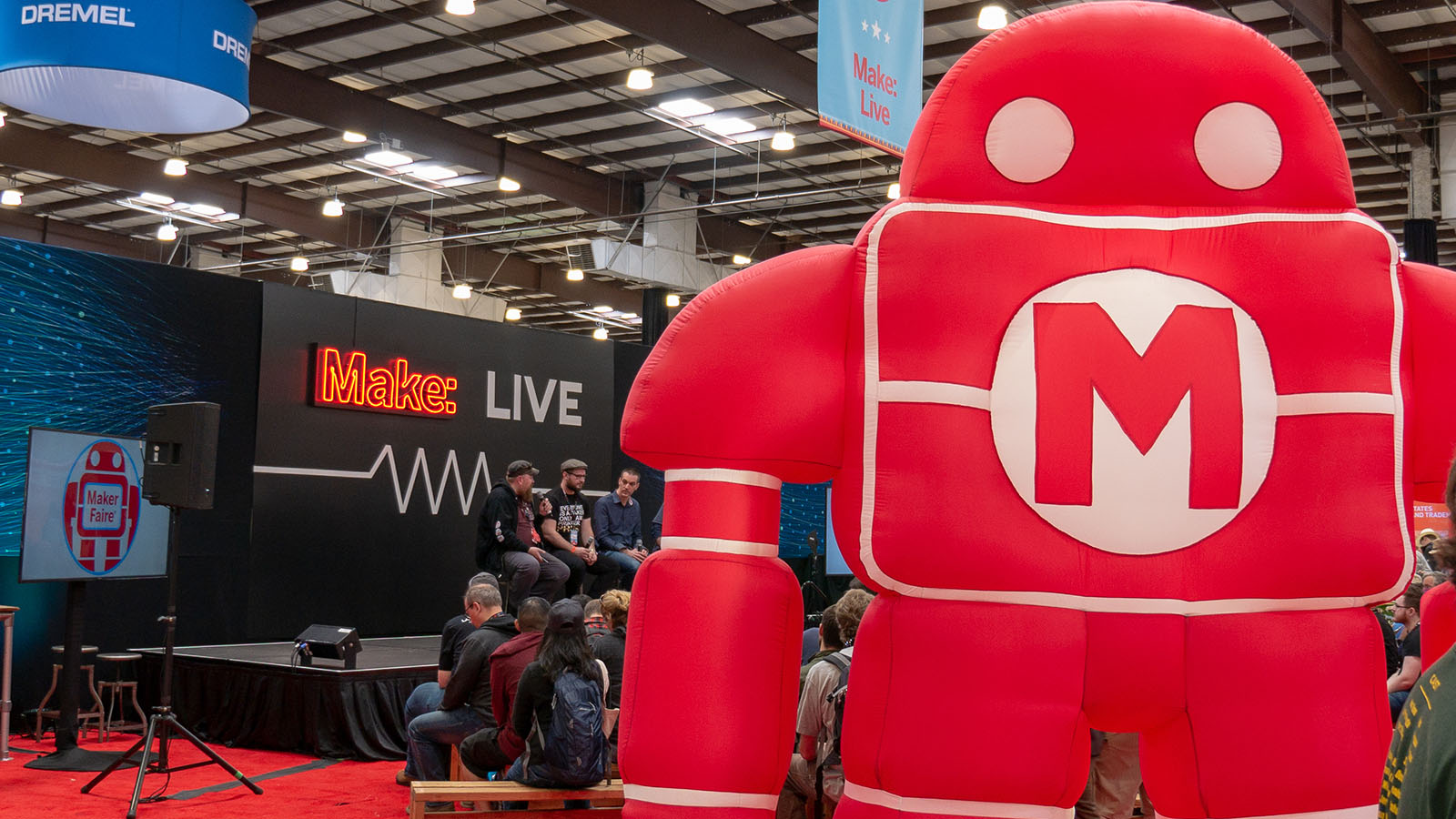
The Bay Area’s Maker Faire 2018 encompasses an impressive scope of activities. Pedal-powered live music, fire-breathing machines, kids building stuff, corn dogs, fresh honey, LEDs, soldering, roaming robots, and so much more. The last couple of days I made a few posts on the things I saw at Maker Faire. In this post, I’ll summarize many things that don’t fit together, but I wanted to mention that I enjoyed seeing.

Click here to check out my other Maker Faire 2018 posts. They include first-looks at the two new exciting Arduino boards, five companies I didn’t expect to see at the show, and a photo gallery of my favorite stuff.