Category

Tutorials

Category

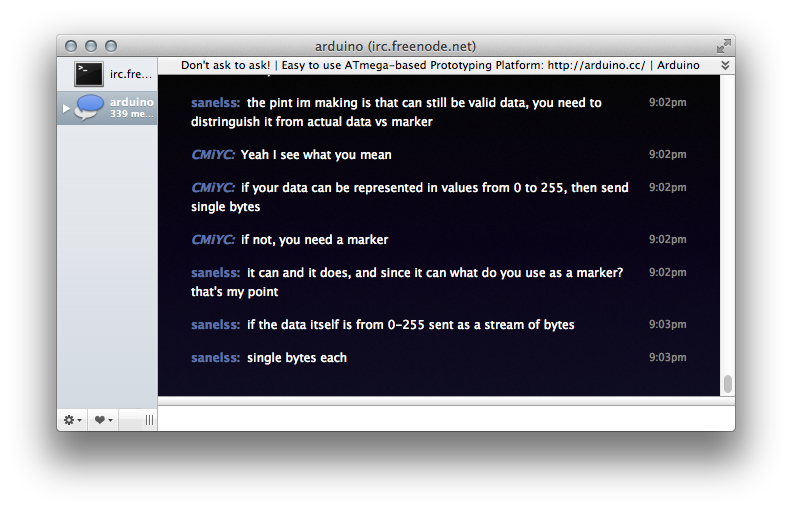
While the Arduino Project Team provides their official Arduino forums, sometimes real-time help is just a bit better.  When that is the case, I encourage you to visit the freenode.net IRC channel, #arduino.  While as of today it is not an official channel, there are a number of great people available to help.

You can find me under the nick “baldengineer”, big surprise, I know.  Others like kline, Yoston and pwillard are also excellent people to ping with questions.
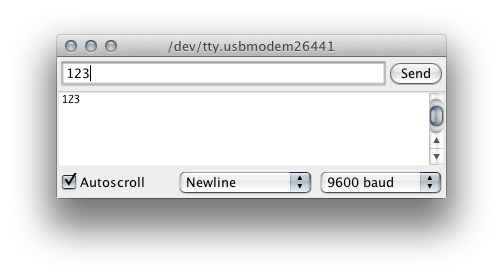
When Serial data is transmitted to an Arduino, it is sent one byte at a time.  Even though you might type “123” in the Serial Monitor, that’s not quite what is sent.  Instead the bytes “1” then “2” then “3” are sent.  Once received into a buffer on the Arduino, these individual bytes need to be reassembled into something useful.

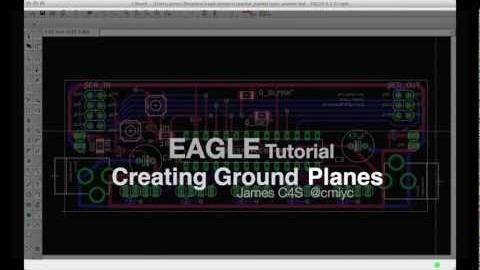
Creating PCBs in Eagle is a straight-forward process once you understand how EAGLE works. In fact, most users can get up to speed enough to draw a Schematic and then layout a simple PCB. Making the connections between components is not only fun but can be a form of artwork.

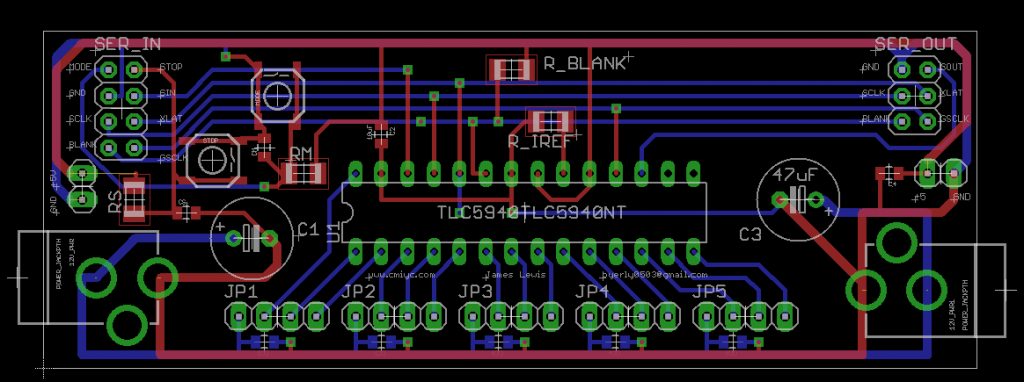
Often overlooked is how much space is left wide open. For example, a board might look like this:

TLC5940NT Painter Board

The area in black will have no copper. For circuits that don’t require a ground plane, this may not be an issue. However, it rarely hurts to fill in empty area with a ground plane. EAGLE makes it very easy to do this, after your circuit design is complete.

Did you know it is possible to toggle the state of a Arduino OUTPUT pin using a single line of code?  It’s true!  It’s also possible to use digitalRead() on an OUTPUT pin.  Assuming pin 13 was set to output, this single line of code will cause the LED to change state (or flash) each time it is called:

digitalWrite(13, !digitalRead(13));
Keep reading to understand how these two tricks work.