Category

Tutorials

Category

One of the common questions related to using the millis() function in Arduino, is around timed events. After an event occurs, you want the code to wait for some time before doing the next step. But you don’t want to stop the program with delay().

[featured-image link=”https://www.baldengineer.com/use-millis-with-buttons-to-delay-events.html” single_newwindow=”false”]

In this example, we will use millis() to wait a few seconds after a pushbutton press to turn on an LED. Then a few seconds later, we will turn it off.  All without using delay().

Understanding millis()

The Arduino millis() function will let you accomplish this delayed action relatively easily. First, read through my multitasking with millis() tutorial and then look at some of my millis() cookbook examples I’ve already posted. Getting used to seeing this kind of code will make this line by line tutorial on timed events using millis() easier to follow.

What makes the Raspberry Pi so attractive? At $35 it is an unbelievable value for a single board computer. Since its introduction, a price race to the bottom has begun.

The C.H.I.P. claims to have started shipping the $9 computer. Which, many pointed out, doesn’t cost $9 once you add things like support for display. I would like to point out, I was an early backer and have yet to receive one.

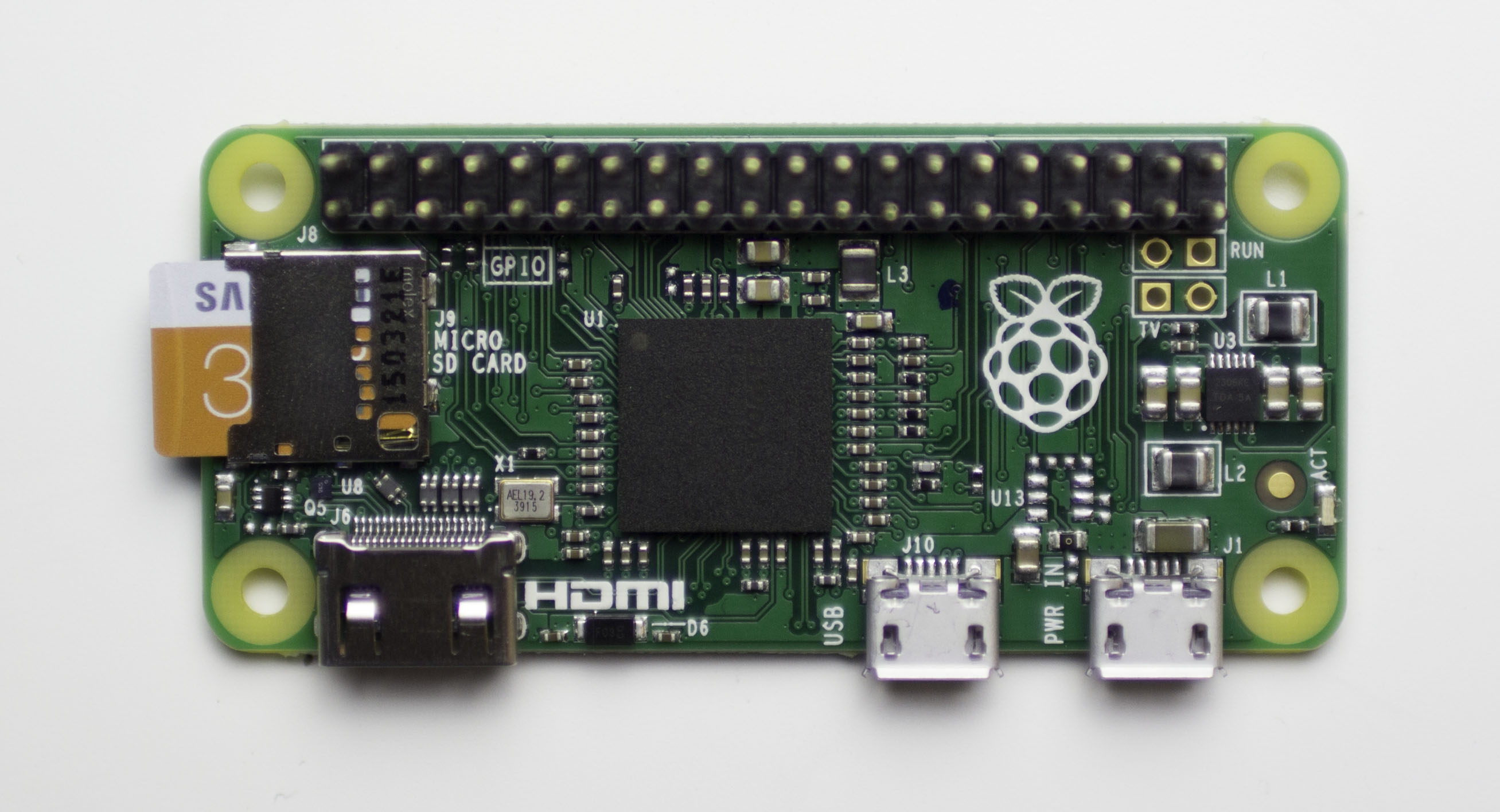
The Raspberry Pi B and B+ were fantastic additions to the Raspberry Pi family. Each extended the capabilities while keeping the cost low. The most recent addition is the Raspberry Pi Zero.

The Raspberry Pi Zero has the same processing capabilities as its predecessors and only costs $5! Does that make it a slam dunk? Well, here’s a few applications to help decide if the size-reduced bare board is worth $5.

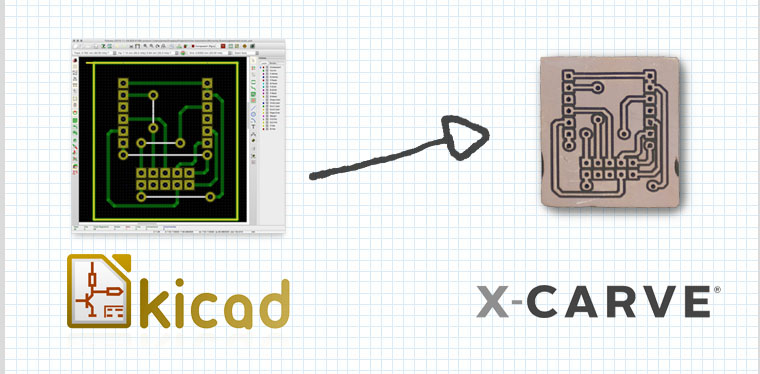
The last time I looked at using an X-Carve for Printed Circuit Boards (PCBs), I created a demo board with EAGLE. Since then, I have learned more about using KiCad, the open source electronics CAD suite. While not a step-by-step tutorial, here is my rough KiCad to X-Carve PCB workflow. These are just the high-level steps, the tools necessary, and the settings I’ve discovered for each—so far.

Eventually, I will make this a more detailed KiCad to X-Carve PCB tutorial, so make sure you subscribe to my RSS feed for updates.

Here’s the Basic Steps:

  1. KiCad: Draw Board
  2. KiCad: Plot Gerbers
  3. KiCad: Generate Drills
  4. pcb2gcode: Generate G-code
  5. Text Editor: Clean Up G-code Files
  6. Camotics: Simulate G-code
  7. ChiliPeppr: Send G-code and control X-Carve
  8. X-Carve: Make the boards!

Adding WiFi to any project can be difficult. There are a few off the shelf options that make it easier. One option is the official Arduino WiFi shield. This full-featured shield uses its integrated microcontroller to handle the WiFi protocol, security, and the TCP/IP stack for you. From “plug it in and go” perspective, this is an awesome option for Arduino-based projects. Plenty of example code supports the nicely designed hardware. The main downside to some people is the price.

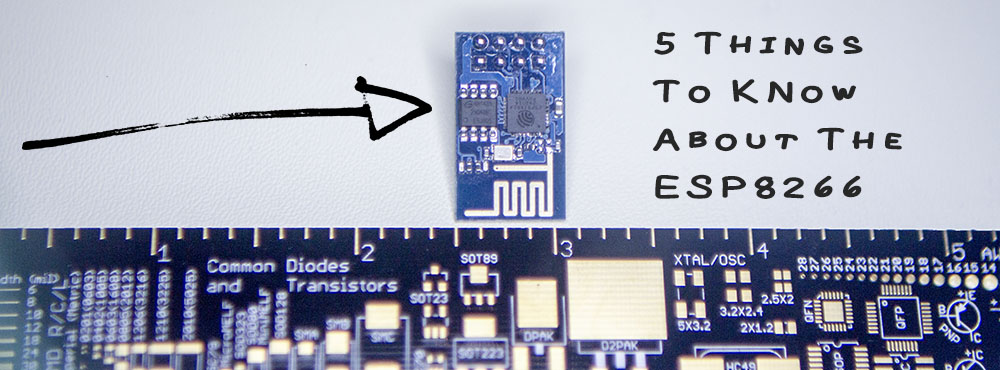
The more popular option these days is the ESP8266, typically advertised around $5US. They are about the size of a TO-220 packaged transistor. How do they get so small? Using a technology known as “System On a Chip”, or SOC, these tiny modules pack everything on the Arduino WiFi shield inside of a single chip! SOCs are great when space is limited. If production volumes are high enough, there can even be a cost advantage.

After spending some time with an ESP8266 I bought on eBay (which I don’t recommend..), I’ve found some things you need to know before building your ESP8266 based project.

When you hear the name “Arduino,” does a picture of the Uno come to mind? While the most popular, this 8-bit based board isn’t the only Arduino available today. There are some other boards available like the Due and recently introduced Zero, which are far more advanced than the humble Uno.

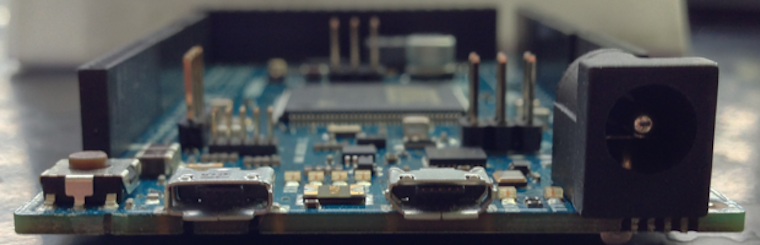
These are 32-bit microcontroller boards that have a very different architecture compared to the relatively straightforward Uno. In fact, one of the most striking differences is that the Due and Zero have two USB ports.

What is the difference between the Programming and Native ports on these more powerful Arduino boards?