Category

Tutorials

Category

Back in 2013, a Kickstarter ran for a project to put a python interpreter on a microcontroller. At the time I could not see the benefit. Cool project, but I asked myself: “why?” On my last Adafruit order, I received a free Circuit Playground Express. The board comes with CircuitPython pre-installed. After playing with Circuit Python, or CP, I finally “get it.”

For Valentine’s Day, I made an animated LED heart for a new love in my life, Circuit Python. Well, love is a bit of a strong word. The past couple of weeks I have been learning Circuit Python, and I am excited by what it offers.

What is Circuit Python?

It is a Python implementation that runs on microcontrollers. The code exists on the microcontroller as text. The interpreter runs the code from that text file. Circuit Python is built on, or based on, MicroPython. Adafruit is designing it to teach programming. It is easy to get started, just open up the code.py file from the auto-mounted drive and start typing. When you hit save, the code runs. That’s it.

While the buzzword “IoT “is relatively new, there has been a long time “internet of things” in operation. Those devices are called the far less sexy term “M2M” or machine-to-machine. These devices, around since the 90s, contain a microprocessor, some sensors, sometimes electromechanical hardware, and a cellular radio. These M2M devices were (and still are!) the early “Internet of Things.” Thanks to Hologram.io, you can join this new/old trend for free.

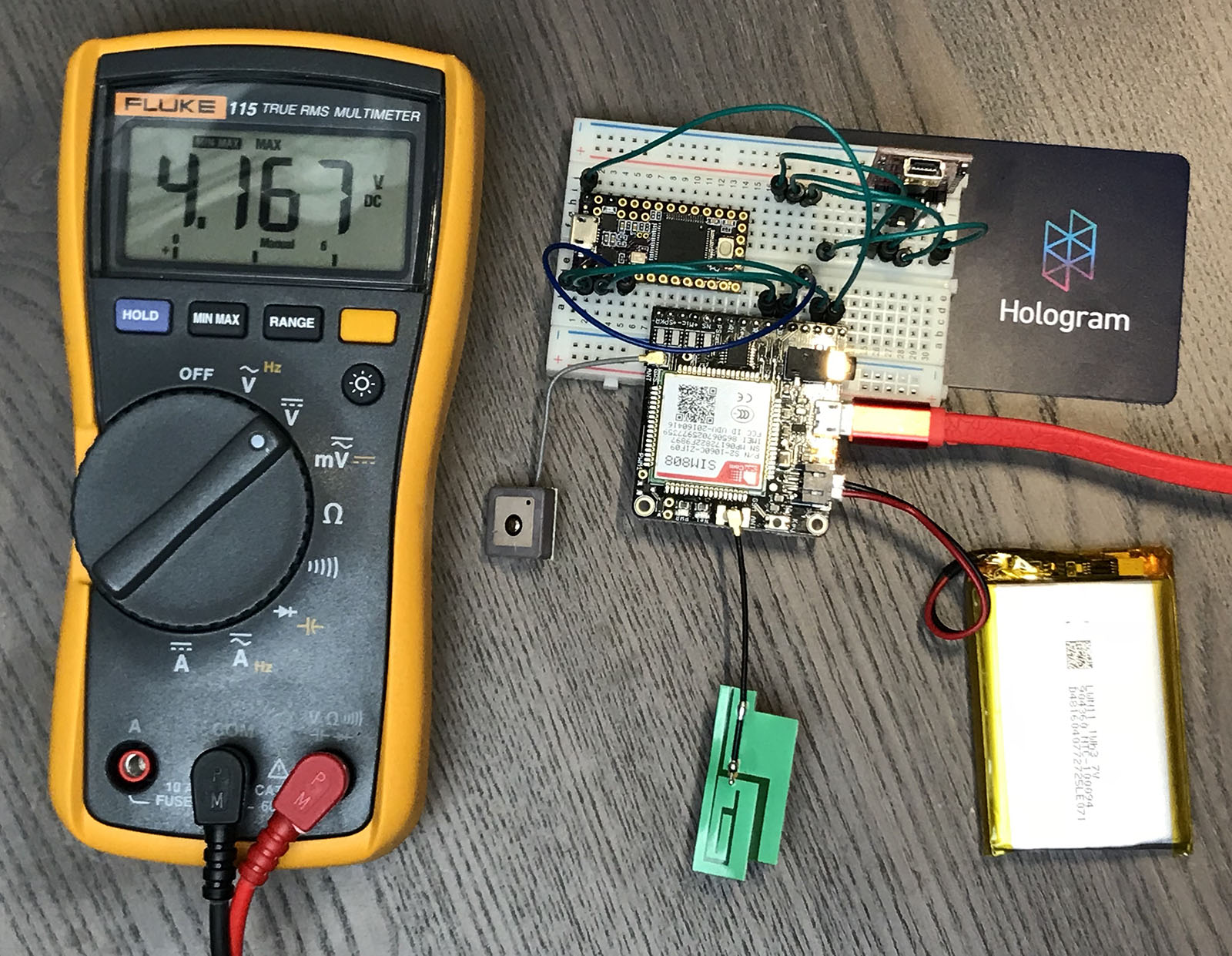
I decided it was time to up my IoT game with a GPRS, or 2G, data radio. In this post, I show the hardware I am using to create a 2G-based GPS tracker. It includes a Teensy 3.2 (Arduino) connected to a SIM808 Module (FONA) using a Hologram.io Developer SIM. It transmits GPS coordinates to an Adafruit.io Dashboard, which displays them on a map.

This post is not going to be a tidy tutorial. Instead, it is all the steps (and notes) I went through. I will cover:

  1. Hardware pieces I am using
  2. How to verify SIM808 (FONA) module is connected through Hologram via Serial Commands
  3. How to send HTTP/POST requests (including SSL) with the SIM808 (FONA)
  4. My (brute force) changes to the Adafruit FONA Library
  5. Code for sending MQTT payload (GPS Coords) to a dafruit.io dashboard

When done, you will be able to build something like a battery powered GPS Tracker, that updates over cellular. If you are in a rush, grab all the code from the FONA GPS Tracker Github Project.

One of the last significant steps in a project is designing the custom PCB. This stage means creating a DIY Arduino board that is custom to the application. Two examples of my past projects are BinBoo, a Binary Clock, and Open Vapors, my reflow oven controller.

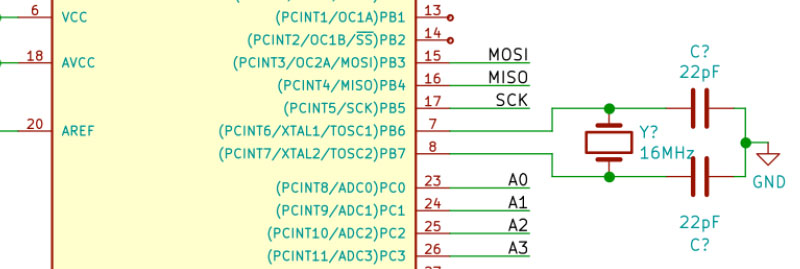
While working on a project for a friend, I got to thinking; it would be nice to have a checklist for circuit elements to include on a DIY Arduino board. In the early days, I forgot to add a filter cap to AREF, for example.

These tips are based on an 8-bit AVR design, like the ATmega328p chip. You could apply these tips to other 8-bit AVRs. Until now, I have not designed a custom board around a 32-Bit/ARM board. Though at only $16, I would be tempted to just solder the Teensy module directly to my finished board.

Below is a written list of items for a DIY Arduino checklist. If you’d like to see me design this board in KiCad, check out this AddOhms Tutorial.

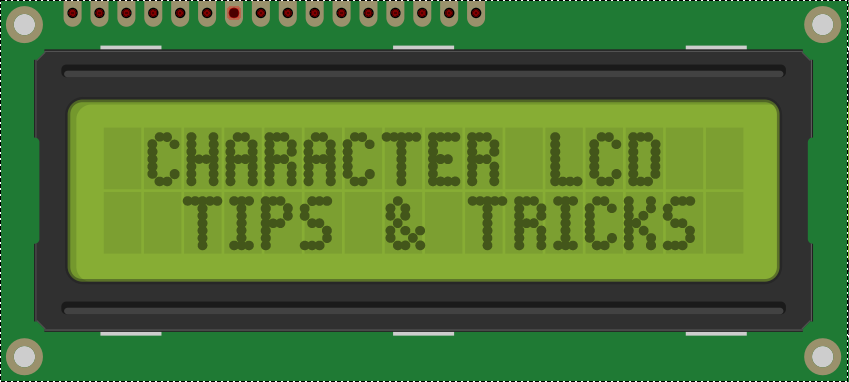
When I started working on Open Vapors, I thought the stumbling point would be the PID algorithm or safe AC line control. However, it turned out; I spent a significant amount of time understanding how to print to the Arduino LCD display correctly.

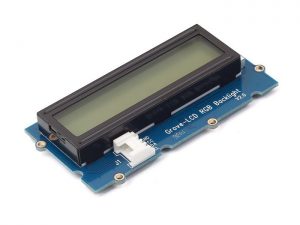
Grove Character LCD with RGB Backlight

If you need an easy to use RGB LCD, check out the Grove LCD from SeeedStudio. They sent me one to check out. The LCD comes with Seeed’s “grove connector system” which can connect to a variety of their Arduino-compatible boards. You can also pick up the Grove Base Shield which adds a variety of Grove connectors to an Arduino Uno. The Grove LCD makes it super easy to connect up a character LCD. It is very plug-and-play.

As I dig into my latest project, the lessons I learned back then are coming back to me. Here are 7 tips for driving an Arduino LCD display, like one with 2×20 or 4×20 characters.

As a kid, I got the book “Upgrading and Repairing PCs.” (Now in its 22nd edition.) It was the first book to explain to me the PC architecture. I considered, how were there so few pins on an AT-style keyboard connector when there were 101 keys on the keyboard? That is when I first learned about the keyboard matrix.

Original image from Deskthority Wiki. (Edited image is shown.)

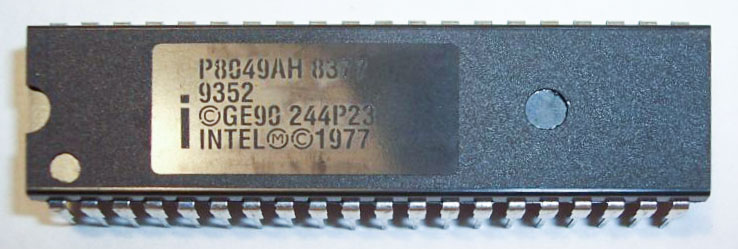
The keyboard matrix itself did not amaze me, but instead the idea there was an entirely separate 8-bit microcontroller inside of the keyboard. Early keyboards may have used the P8049AH, which, there is still some stock available to purchase. I was fascinated with the idea an entire computer was necessary to run the keyboard, to use my “real” computer. Why did it take something as complicated as a microcontroller?