Category

Tutorials

Category
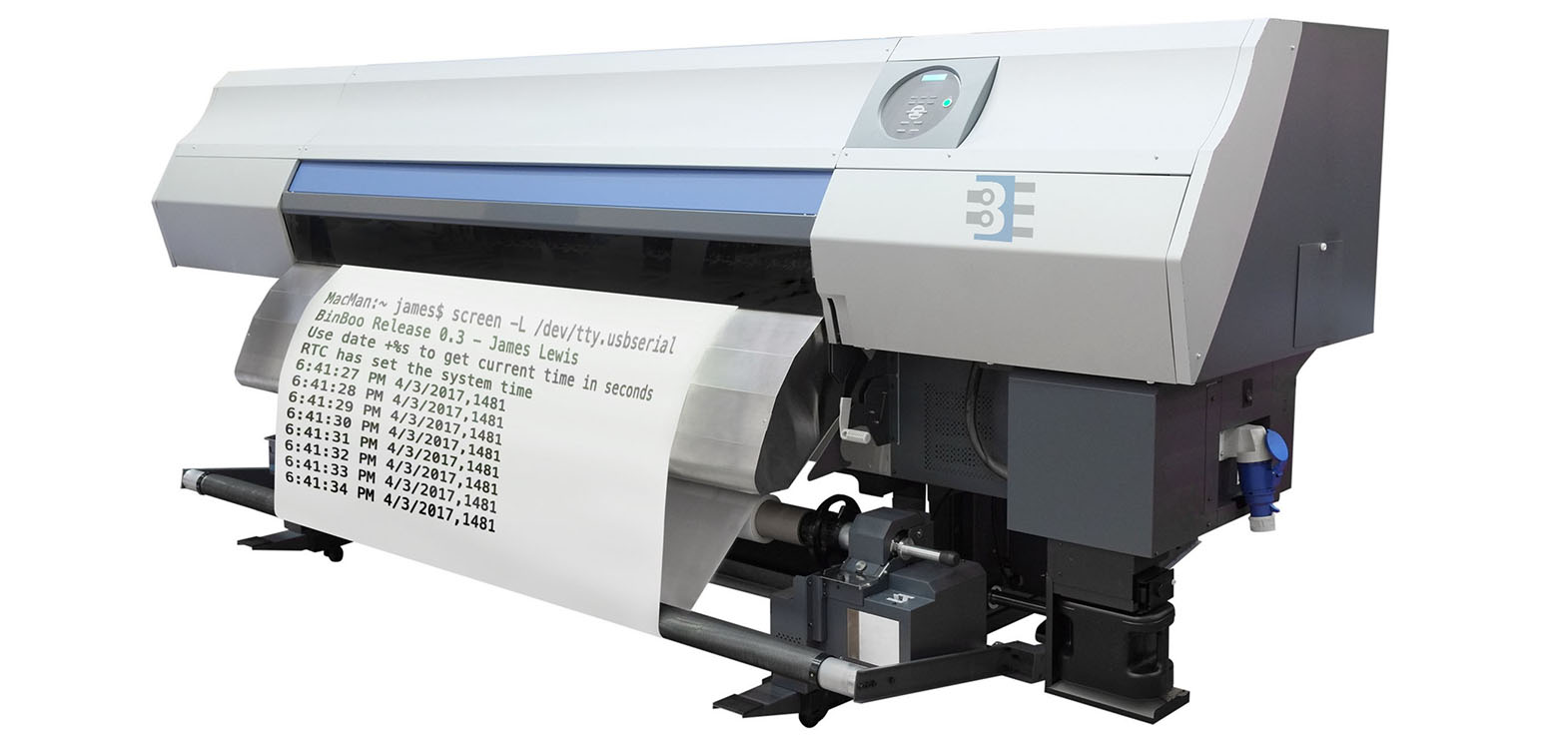
The Arduino serial monitor is usable when you want to watch data from an Arduino. However, it does not have a built-in method for saving the data. Here are some ideas if you want to build an Arduino data logger with or without a PC.

Important note on Arduino Data Logger examples

With all of these examples, please remember that whenever you open the Arduino’s serial port, the board will reset. So if your log file shows “Initializing SD card…” with a few data lines in between, it is because there is a reset happening.

Initializing SD card…initialized.
Temp: 34, Time: 03:24:44
Temp: 33, Time: 03:24:45
Temp: 34, Time: 03:24:46
Tem

Initializing SD card…initialized.
Temp: 34, Time: 03:24:50
Temp: 34, Time: 03:24:51
Temp: 33, Time: 03:24:52
Temp: 34, Time: 03:24:53
In that code you can see data logging started and then restarted. What happened is that after programming, the board starts logging. Then when you open the Serial Monitor, the data logger restarts. To solve this issue, either disable auto-reset, add a 3-4 second delay at the start of setup(), wait for a character to be received, or wait for a button press. That will give you time to open the Serial Monitor.
Sending simple serial commands to an Arduino is the easiest way to communicate between an Arduino and a computer. The computer could be a PC, a Raspberry Pi, or any device that communicates with serial. By sending and “decoding” a single character it is easy to add a simple debug menu or even serial menu. Plus, it is easy to extend.

Single Character vs. Full Words

The mistake I see many people make is that they try to send full-text strings as serial commands. For example, to turn on a LED, I have seen (silly) commands like “RED LED ON” or “RED LED OFF.” While you could use something like strcmp(), as I showed on the Multiple MQTT Topics example, that tends to be overkill for most serial commands. Humans like words, computers like binary. Just send one character over serial.

switch (variable) {
  case 'a':
	// A Stuff

  case 'b':
  case 'c':
	// B and C Stuff
  break;
}
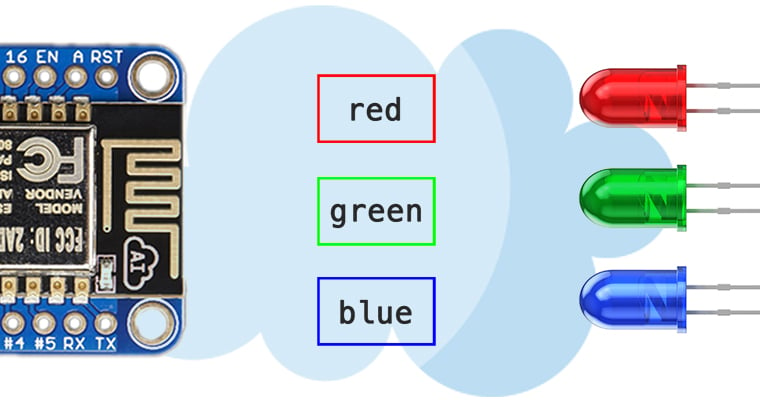
In my Arduino MQTT Examples, I kept things simple by only subscribing to a single topic. One of the strengths of MQTT is that a device can subscribe (or publish) to multiple topics. The broker will sort things out. Even though my first example only showed one, it is straight forward to get the Arduino PubSubClient library to subscribe to Multiple MQTT topics. The quick answer is that you need to look at the MQTT response to find out which topic sent the payload.

tl;dr version

If you’re looking for a quick answer, here’s the magic code we’ll add to the callback() function.

void callback(char* topic, byte* payload, unsigned int length) {
if (strcmp(topic,"pir1Status")==0)
  // whatever you want for this topic
}
Keep reading for a more detailed explanation of how to Subscribe to Multiple MQTT topics with Arduino’s PubSubClient. Obviously, this code will work on Arduino boards with a TCP/IP interface and, of course, the ESP8266 based boards.

It is commonly known that ceramic capacitors change capacitance with applied voltage. What isn’t always as well known is how strong this effect can be and why it occurs. At KEMET we’ve put together a technical video that answers that question.

What is Ask An FAE?

Ask An FAE is a new video series we launched at my day job, KEMET. An FAE is a field application engineer. These engineers are very common in the electronics industry. Companies like KEMET, where I work, have FAEs who meet with customers to answer technical (and very detailed) questions about how to use their products. In UBM’s Mind of an Engineer survey, FAEs were ranked as one of the top information sources for design engineers.

At KEMET we decide to use FAEs to answer the questions. While I’m not an FAE today, I was in the past and happy to kick off the series with our CEO.

Check out KEMET’s Ask An FAE

For fifteen years I used my Radio Shack 22-168A digital multimeter as my go-to meter. A couple of years ago I bought a Fluke 115. Not because the RS meter lacked a measurement, but because I wanted a backlit screen. Here’s the crazy thing though in 20 years of multimeter development, there hasn’t been much innovation. Well outside of maybe auto-ranging.

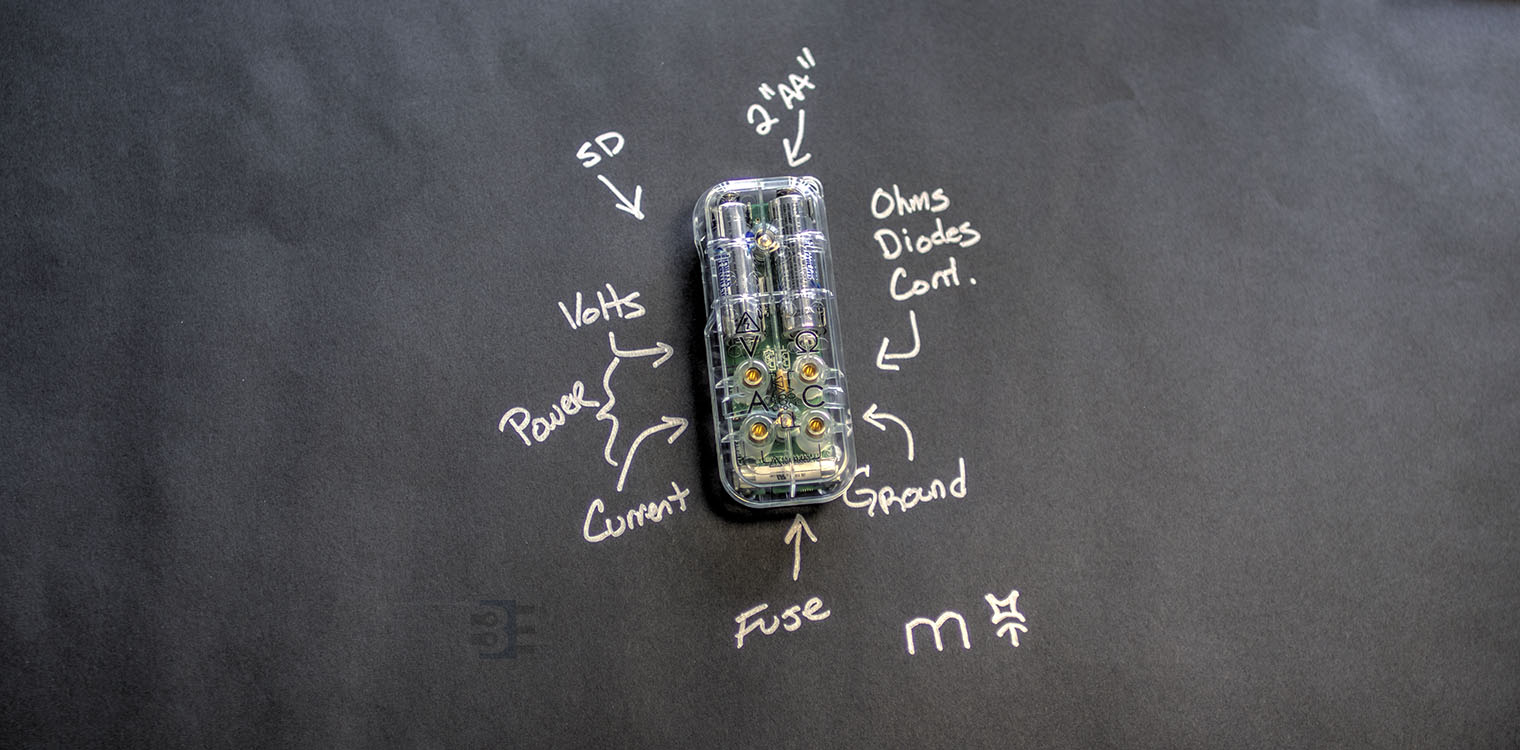
All three meters I have, plus the Virtual Bench I reviewed about a year ago all continue to have the same limitation: they can only perform one measurement at a time. That’s one feature that makes my latest meter, the Mooshimeter, unique. It can measure both voltage and current at the same time. Oh, and it doesn’t have a screen.